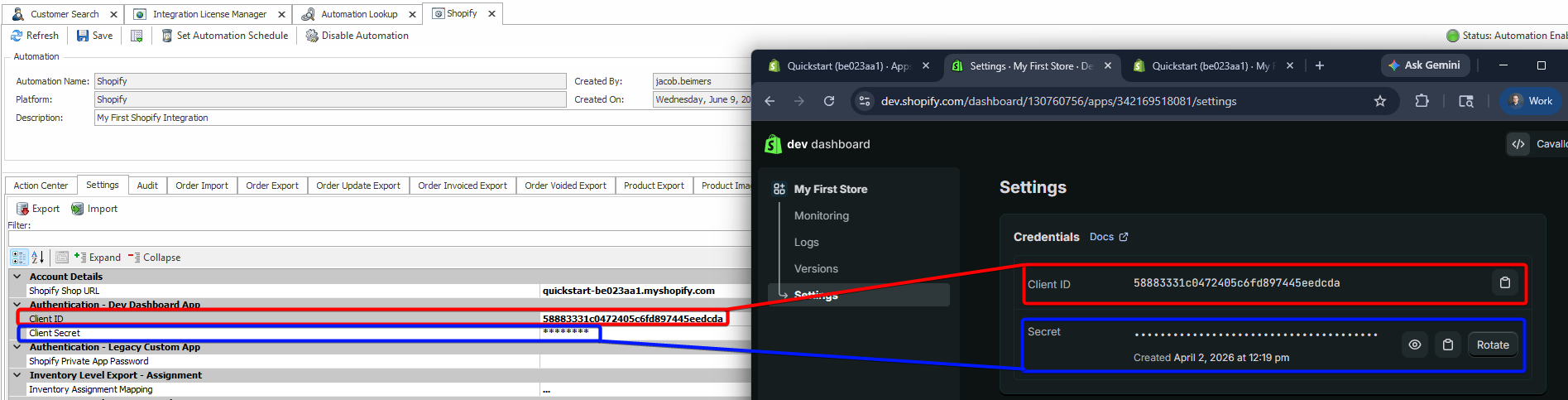
This article will cover creating a Dev Dashboard App in Shopify for use in SalesPad Desktop’s Shopify automation. This setup is required in order for our automation to connect to Shopify to import/update orders, export products, and more. (See also: Shopify Integration)
Note: Support for Dev Dashboard Apps was added in version 5.6.11 of SalesPad Desktop. (See also: Create a Dev Shopify Store (Legacy))
1) Create Your Shopify App
First we will need to navigate to the Shopify Dev Dashboard. To do this:
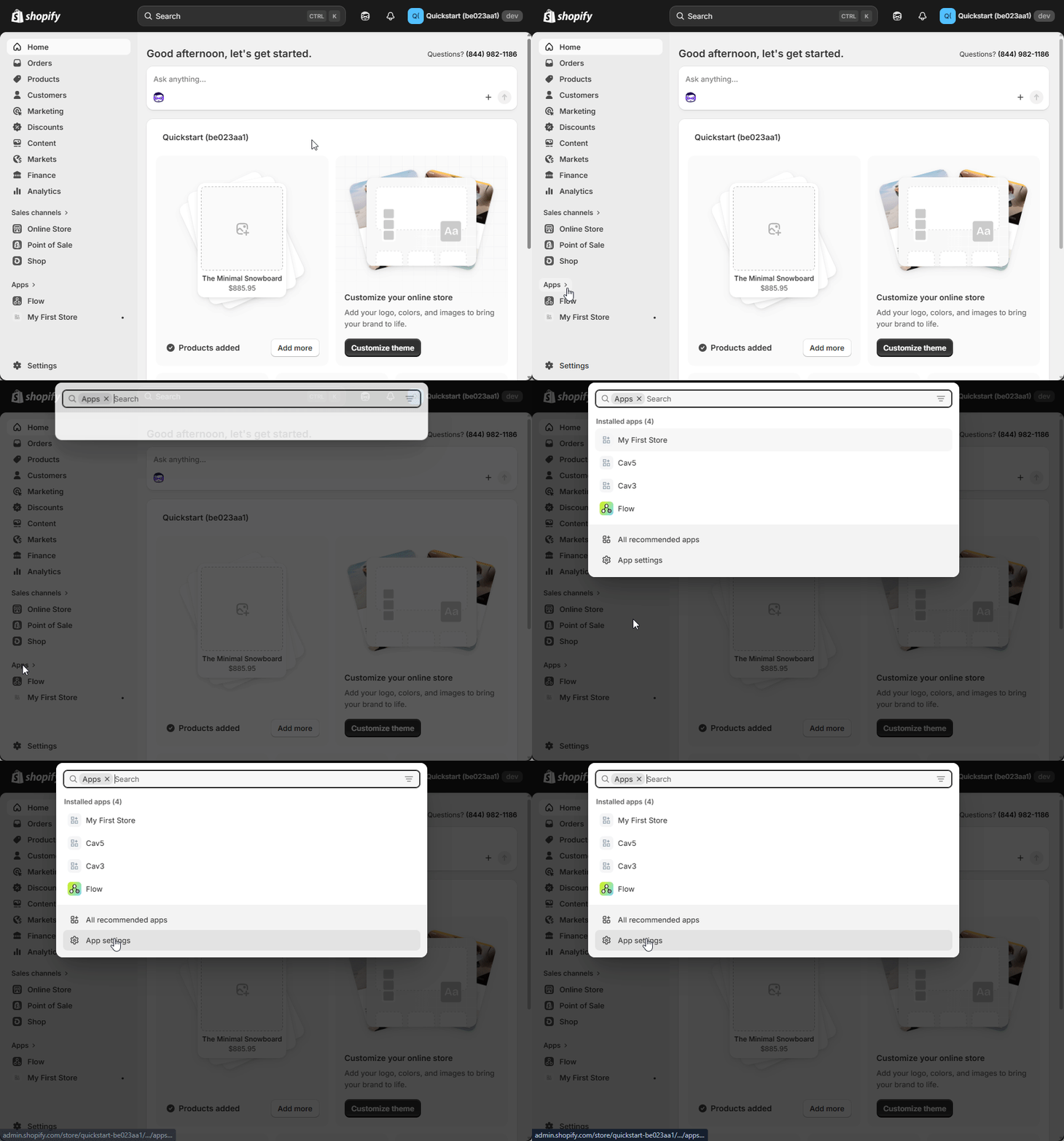
In Shopify, click on Apps and then App Settings.
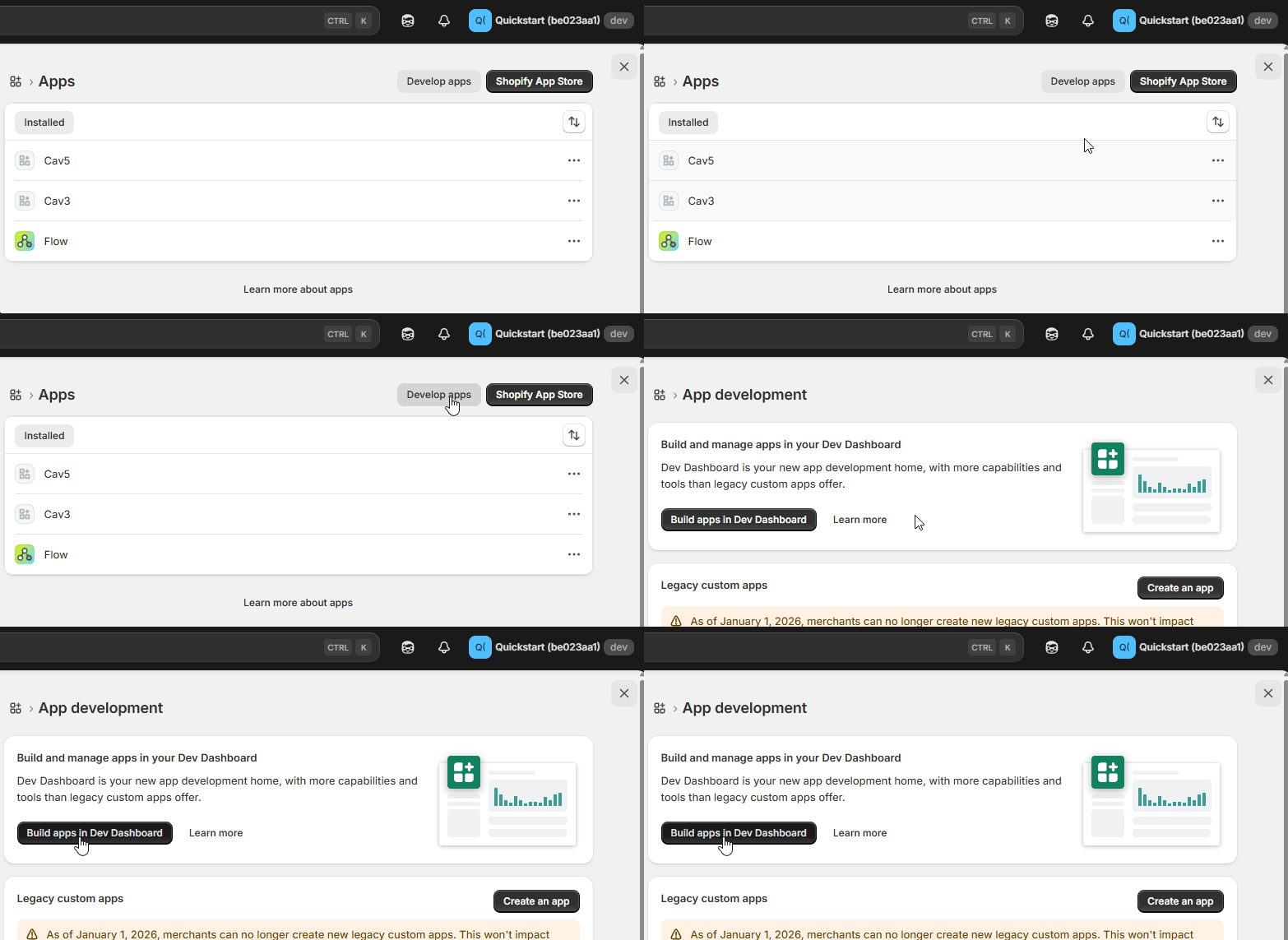
Select Develop Apps on the top right, and then Build apps in Dev Dashboard on the following screen. This will open the Dev Dashboard in a new window.
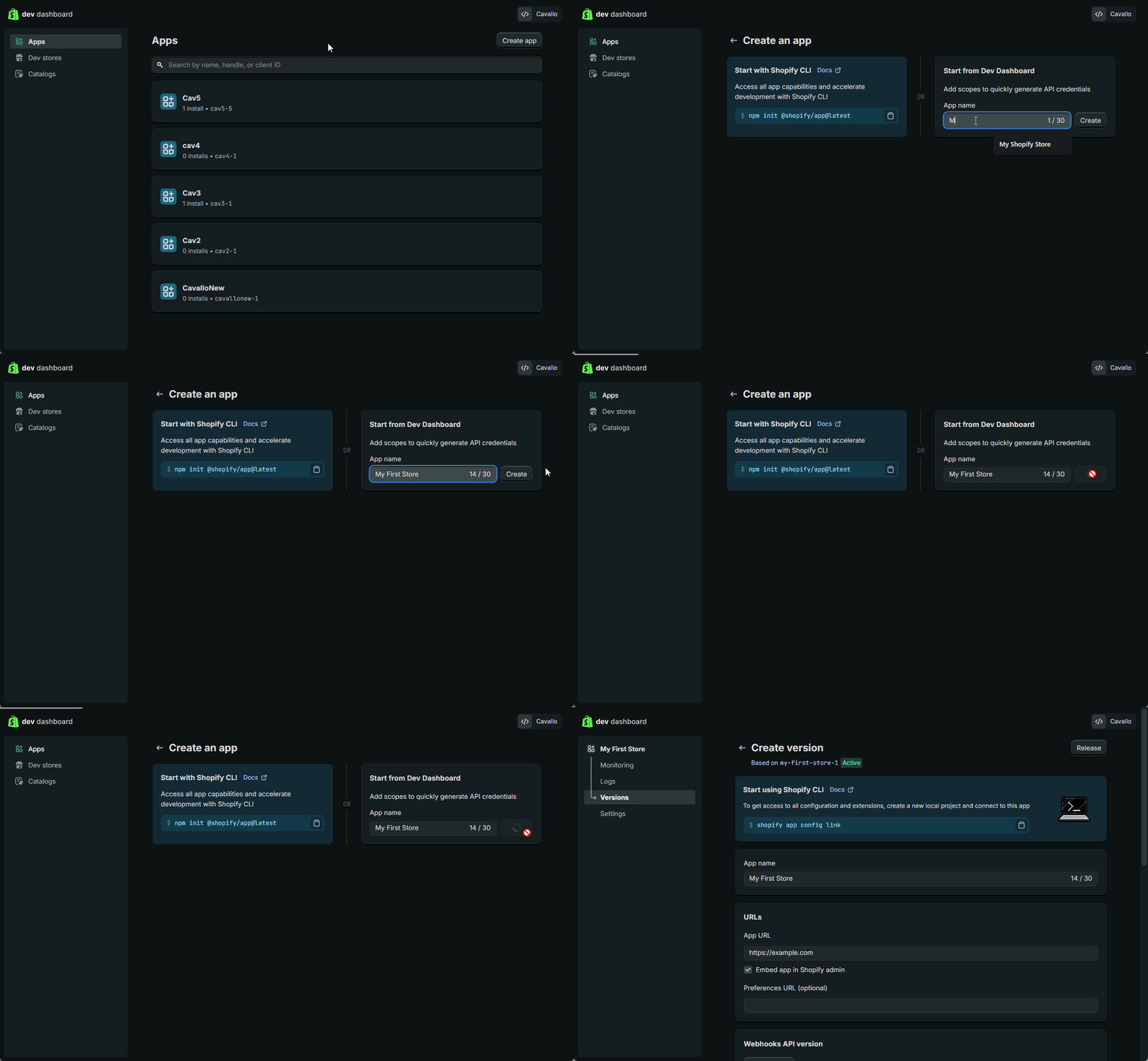
Select to Create App, name your app under Start from Dev Dashboard, and click Create.
2) Setup Scope Permissions
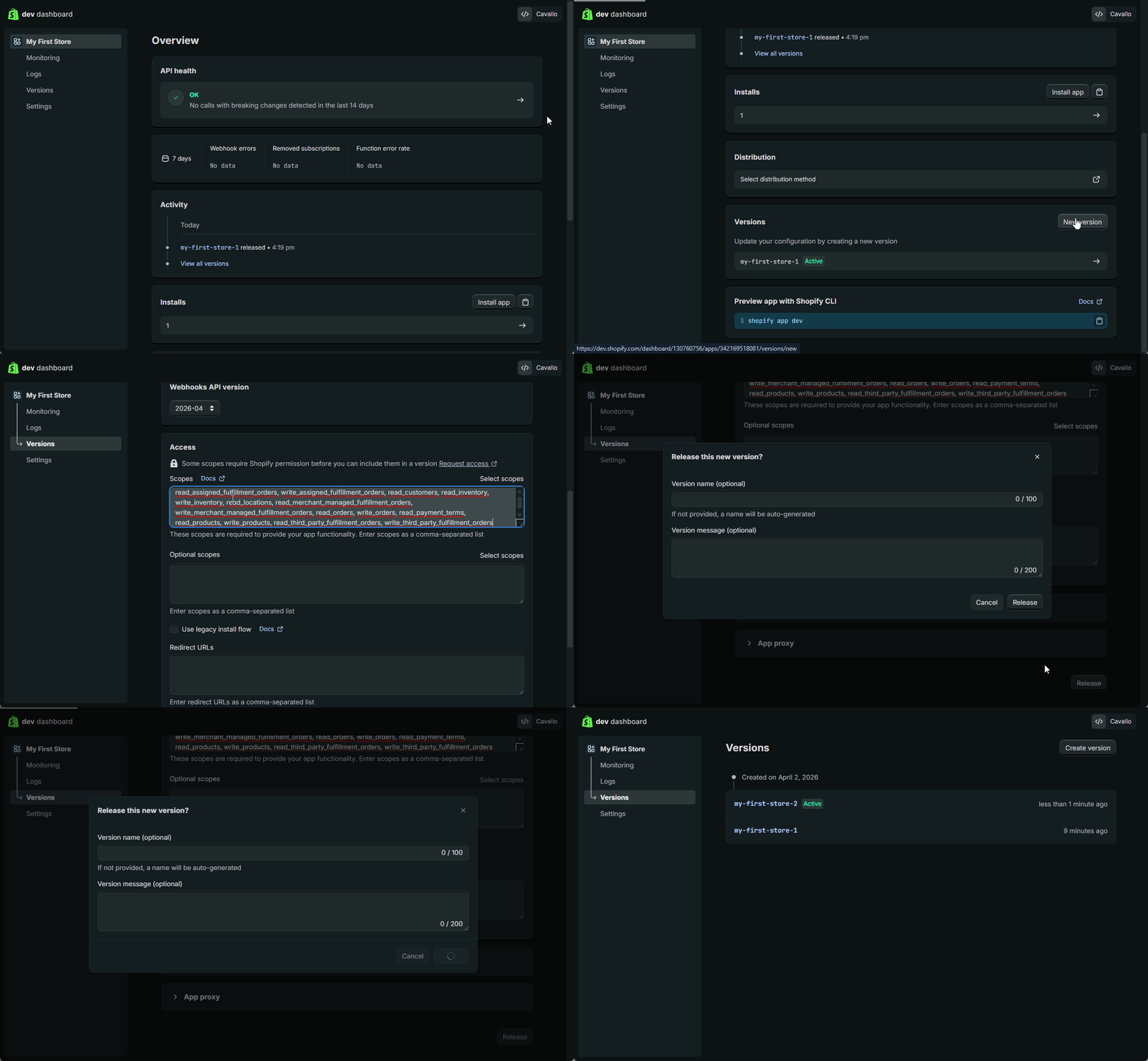
Our Shopify Integration supports many features such as order import, order update export, product exports, and more. For these features to function, we will need to give the application certain scopes (permission sets for Shopify). To do this, click New Version on your app’s home screen and in the setup of this new version, copy/paste the following text into Scopes. Click Release and then Release again on the window prompt.
Copy/Paste:
read_assigned_fulfillment_orders, write_assigned_fulfillment_orders, read_customers, write_inventory, read_inventory, read_locations, read_markets, read_markets_home, read_merchant_managed_fulfillment_orders, write_merchant_managed_fulfillment_orders, read_orders, write_orders, read_payment_terms, read_products, write_products, read_third_party_fulfillment_orders, write_third_party_fulfillment_orders
3) Install your App
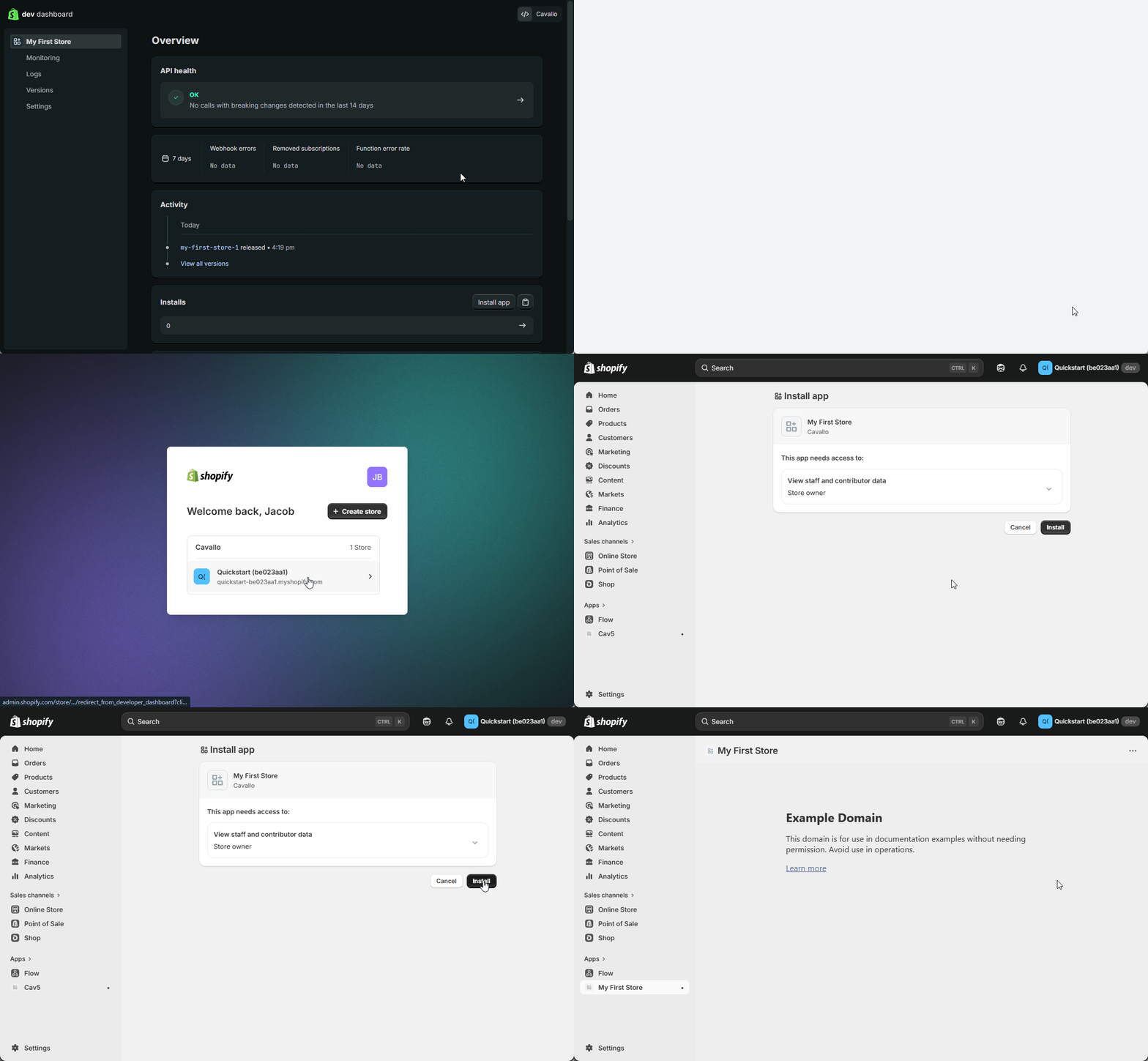
On the home screen of your new app, find and click Install app. This will prompt you to click the Shopify Store you will like to install your app to and then complete the install.
4) Connect Shopify To SalesPad
Your Shopify App is ready to connect to SalesPad! To complete the connection, you will need to collect your Client ID and Secret for your Shopify App and input them into your SalesPad Shopify Automation settings as seen below. Be sure that you have your Shopify Shop URL configured as well.